About PTEC Home Diabetes Monitoring Programme


The Primary Tech-Enhanced Care (PTEC) Programme helps patients to manage chronic conditions from the comfort of their home, with a simple-to-use kit.


PTEC for Diabetes

Following the success of the Home Blood Pressure (BP) Monitoring Programme, PTEC is expanding to provide telehealth support to patients with diabetes as well.

The Home Diabetes Monitoring Programme offers timely support to patients, to help them manage their condition better from home with the help of simple technology and tele-consultations with the polyclinics.

We have conducted a trial with all three healthcare clusters, with patients showing improved diabetes control at the end of their three-month programme.

The Home Diabetes Monitoring Programme is now available at all polyclinics in Singapore.

Watch Seng share with Ravi about how the Home Diabetes Monitoring Programme has helped him understand his condition better, and manage his diabetes*


*This is a dramatisation that shows the journey of a typical patient enrolled in the programme.


PTEC Home Diabetes Monitoring Programme at a glance


  • MEASURE: Track your blood sugar closely
    Patients will measure their blood sugar at home at least once a week, with blood glucose meter. The readings will be saved automatically in the Health Discovery+ app. Patients can view all past readings in a chart that tracks changes in their condition over time.
  • SHARE: Allow easy sharing of your blood sugar readings with polyclinics 
    With a click of a button, these readings will be sent to the polyclinic. The care team will monitor the blood sugar readings and contact the patient if the condition is not well-controlled or if there is a need to adjust the medication.
  • SUPPORT: Receive timely advice on managing your blood sugar levels
    The Health Discovery+ app provides patients with timely and interactive advice, helpful reminders, and notifications. To help patients save time and avoid additional trips to the polyclinic, the care team may also schedule a tele-consultation and provide clinical advice over the phone.
  • BENEFITS: Reduce risk of heart disease, kidney problems, and other serious health issues
    Patients with uncontrolled diabetes, or blood sugar levels that are too high, would have a greater risk of heart diseases, kidney problems, and other serious health issues. Patients can better manage their diabetes and reduce these risks with medication, a balanced diet and exercise.


    PTEC is here to support patients in making these lifestyle changes and tracking their progress toward better health.


    Manage your health closer to home, with PTEC!

Getting Started

Eligibility Criteria:

  • Diagnosed with Type 2 diabetes mellitus,

  • Able to self-monitor blood sugar levels

  • Not pregnant


If you are interested in this programme, you can approach your doctor or nurse during your usual polyclinic visit. Your care team will advise whether this is suitable for you.

Find out more at SingHealth Polyclinics (SHP), National Healthcare Group Polyclinics (NHGP) and National University Polyclinics (NUP) pages.

 
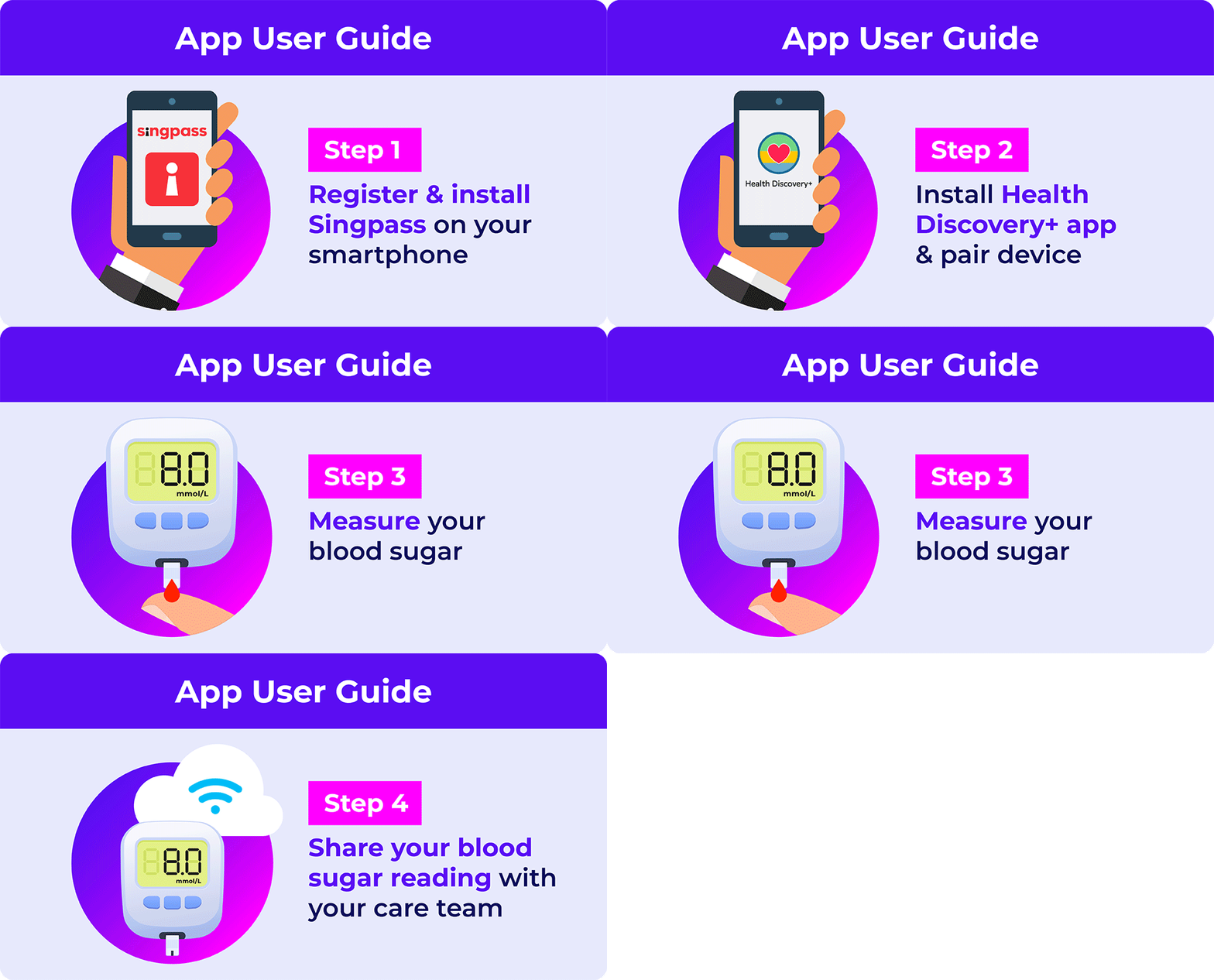
  • 1. Register and install Singpass on your smartphone
    Step 1: Register online for Singpass at the Singpass official website
       
    Step 2: Install the Singpass mobile app on your phone
       

    If you need more help, please refer to this detailed Singpass guide.

  • 2. Install HD+ app and pair device

    What is required?

    SMARTPHONE
    With internet access and phone operating system: iOS 14 and above, Android 10 and above.

    BP MACHINE
    Install the batteries provided.


    Step 1: Download & install the app

     1. Download app by visiting the Apple App Store or Google Play Store.
     2. Enable location while installing the app if you are using an Android phone.

    Step 2: Log in

    1. Open the app and tap on the QR code to log in with the Singpass app.
    2. Enter Singpass passcode or login with biometrics.
    3. Select 'Log in'.
    4. Return to the Health Discovery+ app.

    Step 3: Set 4-digit password

    Set your preferred 4-digit passcode (or allow biometric login if available).

    Step 4: Enable Bluetooth

     Turn Bluetooth 'On' under the 'Settings' menu on your phone.

    Step 5: Select your device

    1. Tap on 'Settings' at the bottom of the screen.

    2. Select 'Devices'.

    Step 6: Pair your device

    1. Select the device 'Glucometers' then select 'Accu-chek Instant'.

    2. Long press or hold down the ▼ button until a Bluetooth symbol appears on the screen. 

    3. Find the 6-digit PIN number (located at the back of your blood glucose meter), enter this PIN number on the pop up screen of your mobile phone, and press ‘Pair’. 
     4. ‘Ok’ will appear on the blood glucose meter if pairing is successful. 

    Step 7: Pairing complete

    If pairing is successful, you will see ‘Connected’ in green in the app. 

    If pairing is unsuccessful, you will see ‘No Device Found’ in the HD+ app, and ‘Err’ will be displayed on your blood glucose meter: 

    • Turn off the glucose meter and your phone, then turn them back on again. 
    • Ensure the glucose meter and your phone are within 1 metre from one another.
    • Ensure your phone’s Bluetooth and location settings are turned on. 
    • Restart the pairing process again. 
    • For further troubleshooting, please call our IT hotline at 6958 7998.


  • 3. Measure your Blood Sugar

    Step 1: Set up your blood glucose meter

    Ensure that your blood glucose is fully set up, then insert test strip. 


    Step 2: Prepare the lancing device and wash your hands  

    1. Prepare your lancing device.

    2. To ensure better accuracy of your readings, please wash your hands with soap and water, or clean your finger with an alcohol swab, before measuring your blood sugar.


    Step 3: Measure your blood sugar level

    1. Massage the finger to facilitate blood flow, and prick your finger.

    2. Squeeze lightly on the puncture site until a sufficient drop of blood has formed, and apply it onto the test strip. 

    3. Your reading will appear on the screen of your glucose meter. 

  • 4. Share your blood sugar reading with your care team

    Step 1: Submit your blood sugar reading

    AUTO

    Please make sure that Bluetooth and Location are turned on.

    1. In the HD+ App, click ‘Record Blood Sugar’, and select ‘Auto’. 

    2. Click ‘Receive Bluetooth Reading’ and wait for the blood sugar reading to be transferred via Bluetooth automatically. 

    3. Once blood sugar reading appears on the screen, click ‘Next’ to proceed OR ‘Retake’ to retake the blood sugar reading. 

    4. Select ‘Meal’ ad ‘Meal Status then input ‘Notes’ for additional comments and click ‘Next’. 


    MANUAL

    1. In the HD+ App, click ‘Record Blood Sugar’, and select ‘Manual’.

    2. Key in your blood sugar reading and click ‘Next’. The range you canenter between 0.6 to 33.3mmol/L.  

    3. Your blood glucose meter may display a ‘HI’ or ‘LO’ instead of a number. If it does, indicate this in the option above, specify it, and click faster. 

    4. Select ‘Meal’ and ‘Meal Status’ options, then inputs ‘Notes’ for additional comments and click ‘Next’. 

    Step 2: Receiving feedback in the app

    When your reading is successfully submitted, you will receive feedback regarding your blood sugar level control in the app. Please follow the instructions and reply to the messages if required.


    Step 3: Notification from the app


    We will provide you with timely and interactive advice, such as educational messages and recommendations on how to better manage your blood sugar levels, via the in-app notifications. 

    Do read the notifications carefully and follow the instructions closely. Please reply to the message if required. 

    Advise 
    The app will advise you on the actions to take if your blood sugar levels are not normal. 

    Remind
    The app will prompt you if you missed your blood sugar reading that week. 

    Educate 
    The app will provide you with tips on managing your diabetes. 

PTEC Home Monitoring Programme: How to Use the HD+ App


PTEC Home Blood Sugar Monitoring: How to Pair Your Glucometer and Submit Your Reading

Frequently Asked Questions


  • What if I do not have Singpass? 
    To enrol in the PTEC Home Diabetes Monitoring Programme, you will need a Singpass account and have the Singpass app installed on your phone. Singpass is the trusted digital identity for Singapore citizens’ and residents' convenient and secure access to thousands of government and private sector services, online and in person. Please go to https://www.singpass.gov.sg/main for more information about Singpass.
  • What is the cost of this programme?

    For a limited time only, this programme includes a free blood glucose meter. If you do not already own a blood glucose meter, you may: 

    • obtain a device from your polyclinic pharmacy to submit your readings
  • Can I drop out of this programme halfway? 
    We strongly encourage you to stay in the programme to better manage your condition. Please consult your care team for guidance if you would like to drop out of the programme.
  • Can I use my own blood glucose meter instead of using a Bluetooth-enabled device for this programme?
    Yes, you have the option to use your existing device or purchase a device of your choice. You can manually key in your blood sugar readings and submit them to the polyclinic.   

    For convenience, you may consider using a compatible Bluetooth-enabled device (Accu-Chek Instant) to sync your readings automatically to the Health Discovery+ app.
  • I forgot my Singpass password. How do I reset it?
    If you have set up your Singpass, you can reset your password online:


    If you require further assistance, please contact the Singpass Helpdesk at support@singpass.gov.sg or 6335 3533. The operating hours are from 9am to 6pm (Mondays to Fridays) and closed on Saturdays, Sundays and public holidays.
  • What can I do if the Health Discovery+ app is not supported on my phone?

    To use the Health Discovery+ app, your phone’s operating system must be iOS 14 and above for Apple devices, or Android 10.0 and above for Android devices.

    You should download the latest available operating system if you have not done so. You may do so by opening your phone’s ‘Settings’, selecting ‘About Phone’ and tapping ‘Check for Updates’. If an update is available, an ‘Update’ button will appear. Tap it to install and reboot your phone. 

    You may contact our IT support hotline at 6958 7998 if you still have problems installing the app.


  • What should I do if the Health Discovery+ app is not working? 
    If you are experiencing issues with the Health Discovery+ app, you can try the following:

    • Force quit the app and reopen it, 
    • Restart your phone, or 
    • Check for updates to the app.


    If the app still does not work properly, please contact your care team for further assistance. Please contact our IT service support hotline at 6958 7998.

  • What if my blood glucose meter stops working? 
    You may try the following solutions:

    • Change batteries or ensure there's enough power, 
    • Remove and reinsert the batteries, or 
    • Restart the blood glucose meter.

    If the machine still does not work properly or is unable to pair with the Health Discovery+ app, please contact the manufacturer of your blood glucose meter for further assistance.
 

Resources


Flyer

PTEC flyer in Chinese

Download Now
PTEC flyer in English

Download Now


User Guide

PTEC user guide in Chinese

Download Now
PTEC user guide in English

Download Now
 

Partners

PTEC is a collaborative effort by the MOH Office for Healthcare Transformation (MOHT) and the three Polyclinic Clusters - National Healthcare Group Polyclinics (NHGP), National University Polyclinics (NUP) and SingHealth Polyclinics (SHP), and supported by Synapxe.

X

By continuing to use and navigate this website, you consent to the use of cookies in accordance with our Privacy Policy.

Confirm